

On October 19, 2026, Google announced two updates that matter to anyone teaching or training people online. Teachers can now see summaries of what students ask in a Gemini Notebook assigned through Google Classroom, and anyone can export an interactive app built in the Gemini app to Google Sites. If you want to build a course website with AI and keep it on your own domain, with your own student experience, Youmake lets you describe the site and get a working, publishable version. This guide covers what Google changed and what to do with it this week.
What Google announced on October 19
Both items come from Google's Workspace Updates blog, and both started rolling out on October 19, 2026.
Insight summaries for teachers. For notebooks assigned through Classroom, teachers get an overall engagement summary and common themes, such as recurring questions and areas of strength. They can also open individual student chat transcripts. Students receive a notification that their conversations in assigned notebooks are visible to their teacher. The feature is rolling out to Education Fundamentals, Standard and Plus, and support for Gemini LTI users is expected "in the coming weeks."
Gemini apps to Google Sites. You can export an interactive app built in the Gemini app through Export > Google Sites. It lands in a new private site draft that you can customize, publish and share. It works on web, Android and iOS, and no new admin control is needed.
Admins also got external sharing controls for Gemini Notebook, including trusted domains, off by default.
Why it matters if you build with AI
The first update tells you something about where AI in teaching is going: the assignment is no longer a worksheet, it is a conversation, and the teacher reads the conversation. That is useful for a school already inside Google Workspace for Education.
It also leaves a gap. Many people who teach are not inside a school Workspace. Think of a trainer selling a cohort, a tutor with 30 students, a nonprofit running a workshop series, or a teacher starting a paid course on the side. They need a public site with a clear offer, a place for lessons, and a way for students to sign in. A private Sites draft from a Gemini app is a good prototype. It is a different thing from a branded course site on your own domain that you control.
If you are weighing that choice for the first time, our guide to AI app builders compares what each type of tool gives you. For education projects, the questions that matter are where the site lives, who owns the code, and what happens to student data.
What to do now
- Decide where the learning happens. If your students already have school Google accounts and your admin has turned on Gemini Notebook, use Classroom for assigned practice. It is already there.
- Decide where the offer lives. Anything public (a course landing page, syllabus, pricing, sign-up) belongs on a site you own. A school-managed Sites draft can disappear when the account does.
- Tell students what is visible. If you use the new insight summaries, say so in your syllabus. Google notifies students, but a plain sentence from you builds more trust than a banner.
- Write the minimum site first. One page with who the course is for, what students will be able to do, the schedule, and one button. Add lesson pages and a quiz after the first sign-up.
- Check your student-data rules. Whatever you build, your district, university or country may have rules on student data. Read them before you collect anything beyond a name and an email.
How to do this with Youmake
Youmake is an AI app builder for websites, web apps, mobile apps and slide decks, with a live preview and an agent chat next to it. For a course, that means you describe the site once and change it by talking to the agent.
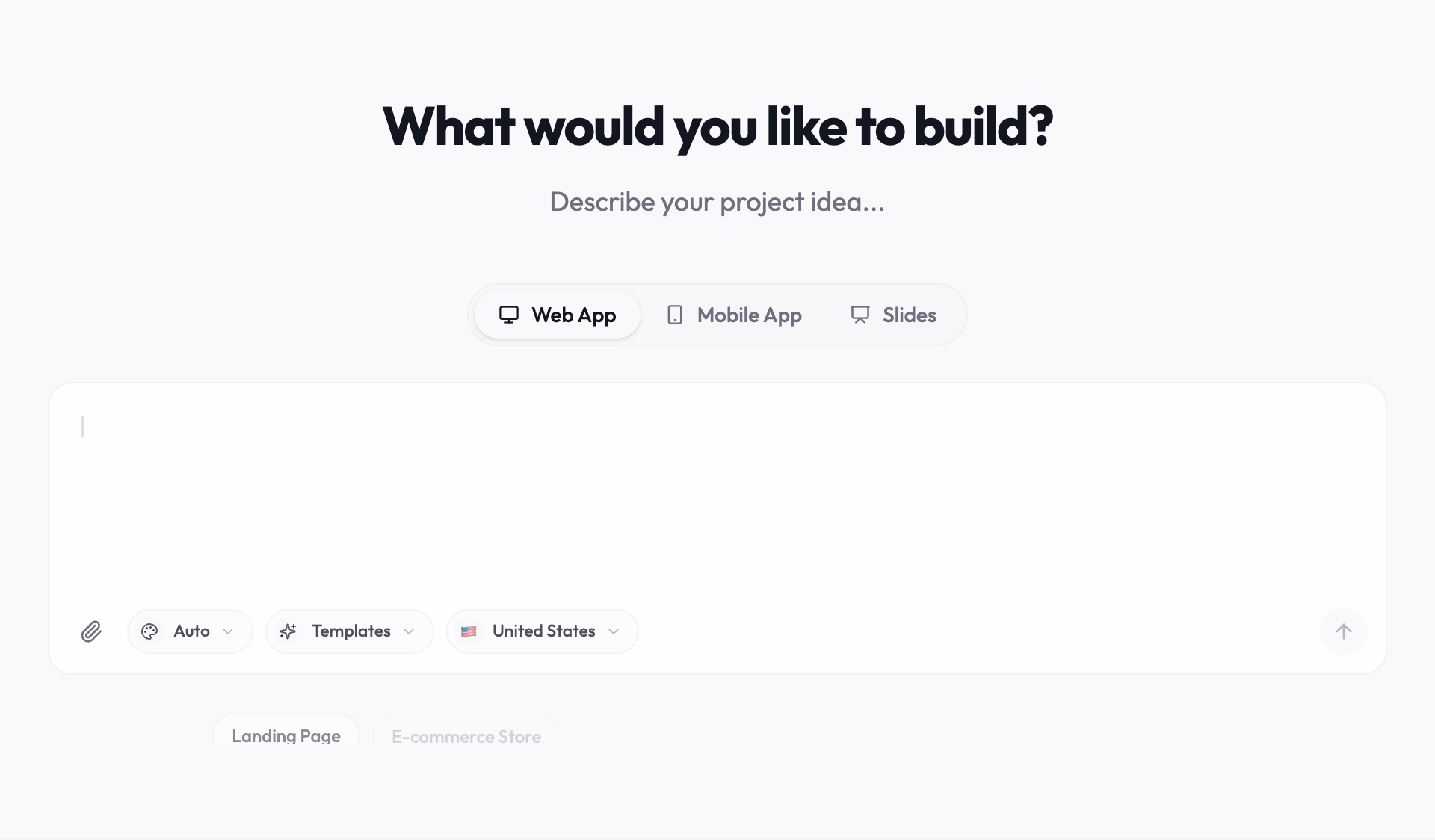
Here is a prompt you can paste into Youmake today:
Build a website for a 6-week course called "Intro to Data Storytelling" for working adults. Pages: a landing page with the outcome, who it is for and a weekly schedule; a syllabus page; a lessons page with one card per week; a short quiz page with 5 multiple-choice questions and a score at the end; and a sign-up page with name and email. Clean, calm design in navy and white. Add a "Start the course" button on every page.
Then work through these steps:
- Describe the course, not the layout. Give the audience, the outcome and the week-by-week plan. The agent turns that into pages.
- Review the live preview and change one thing at a time. Ask for a shorter hero, a different quiz question or a new lesson card in the chat.
- Connect sign-ups. Youmake integrates with Supabase for data such as student sign-ups and with Stripe if you plan to charge. Add them once the core pages work.
- Run the security scan before publishing. Youmake scans your project before you publish it, which matters when a form collects emails.
- Publish to your own domain. The site lives at an address you control, such as learn.yourname.com. You can also export the code or sync it to GitHub, as covered in our guide to AI app builders that give you the code.
For the broader picture of what a non-technical builder can ship, see how to build an app without coding, or look at the Youmake AI website builder page for small-site examples.
Ready to try it? Start a 3-day Youmake trial for $1 and have the landing page and syllabus live by the end of your first session.
Gemini export or your own site: which fits
| Need | Gemini app to Google Sites | A site built in Youmake |
|---|---|---|
| Quick prototype of an interactive lesson | Good fit | Good fit |
| Private draft inside your Google account | Yes, private draft by default | Preview first, then publish |
| Public course site on your own domain | Possible through Sites, tied to your Google account | Publish to your own domain |
| Export the code or sync to GitHub | Not part of this update | Yes, see code ownership |
| Mobile app or slide deck for the course | Separate tools | Same workspace |
| See what students ask an AI tutor | Teacher insights in Classroom | You build the feature, and you decide what to log |
The two are not rivals for every teacher. A Gemini app is a fast way to make one interactive exercise. A site you own is where the course itself lives.
Honest limits
- Google's insight summaries depend on your school's edition and admin settings. If your admin has not enabled Gemini Notebook, you will not see them, and Youmake does not replace that feature inside Classroom.
- Youmake builds the site and the app. It does not grade, host a school's student records or certify compliance. Student-data duties stay with you.
- AI-built quizzes still need a human review of every question and answer key.
- Credits are consumed by each change you request, so plan your site on paper first and make fewer, larger requests.
For the policy side, our look at state AI education rules explains why more schools are asking what AI tools can see, and how teachers are learning to build AI agents shows where classroom practice is heading. More on this subject is in the AI in Education hub.
FAQ
Can teachers really read student chats with Gemini Notebook? Only for notebooks the teacher assigned through Google Classroom. Teachers see a summary and can open individual transcripts, and students are notified that their conversations in assigned notebooks are visible. Admins on Education Fundamentals, Standard and Plus get the rollout first.
Can I publish a Gemini app as a public website? You can export it to Google Sites, which creates a private draft that you can customize, publish and share. Whether you can publish publicly depends on your account's Sites and Drive policies.
Do I need to code to build a course website with AI? No. You describe the pages and the quiz in plain language, review the live preview and ask for changes. Start with one landing page and one lesson, then add more.
Sources
- Teacher-led Gemini Notebook in Google Classroom now offers insight summaries for educators (Google Workspace Updates, October 19, 2026)
- Publish interactive apps from the Gemini app to Google Sites (Google Workspace Updates, October 19, 2026)
- Google Classroom now lets teachers see students' Gemini Notebook conversations (EdTech Innovation Hub, October 27, 2026)