


On November 3, 2026, Google published a 29-page AI in Education Report and, the same day, said its AI tools will be switched off for K-12 student accounts until a school administrator turns them on. Two numbers in the report show why that second decision matters: 85% of educators say they use generative AI, and only 18% of US teachers say their administrators gave them any formal guidance on how to use it. If your school has not written the rules, you can write a classroom AI policy for your own course in an afternoon and publish it as a small site with Youmake. This guide covers what Google said, what belongs in the policy, and how to put it online.
What Google announced on November 3
Two things came out together.
The first is a blog post by Chris Phillips, who runs Google for Education. It says access to Gemini, Gemini Notebook, Gemini in Classroom and Google Search "will be entirely off for K-12 student accounts" until administrators enable it. Google gave no date and said it "will share more specifics with schools in the coming months." TechCrunch reported the change as planned for next year. It also reported, citing comments Phillips made to The New York Times, that a school that restricts AI entirely loses Search for its students as well. The same post made Guided Learning, a mode that walks students through a problem step by step, available in Google Classroom worldwide.
The second is the report, titled "AI in Education Report: From potential to practice." Its section on policies and training says the rise of generative AI "has outpaced accompanying policies and training." The figures it cites:
| Finding | Source cited in the report |
|---|---|
| 85% of educators report using generative AI tools | Center for Democracy & Technology, 2025 |
| 18% of US teachers received any formal guidance from administrators | Walton Family Foundation and Gallup, May 2026 |
| 6% of higher-ed faculty strongly agree their institution provides enough AI training | Digital Education Council, 2025 |
| 40 states and Puerto Rico have official AI guidance frameworks | Playlab state policy directory, September 2026 |
A separate survey points the same way. Hanover Research's K-12 AI Integration Trends report, covered by EdTech Magazine on November 5, asked nearly 300 parents and K-12 educators. Nearly 7 in 10 staff said they want more AI training, and 37% said they feel very comfortable showing students how to use AI for schoolwork.
Why a classroom AI policy is now your job
We covered how states are writing AI education rules earlier this year. A state framework does not tell a ninth grader whether they may ask a chatbot to outline Friday's essay. That answer has to come from the person who sets the assignment.
Google's default-off change makes the question concrete. An administrator in each school will have to choose whether student accounts get AI tools. Either choice brings questions from students and parents about what is allowed in this class and on which tasks. A teacher who already has a written answer can send a link. A teacher without one explains it again in every email and at every conference.
The report also gives a reason to write rules instead of a ban. It cites a study published in PNAS in which high school math students with access to AI scored 17% lower on unassisted exams than peers who worked without it. The report says teacher-designed guardrails eliminated that drop. The useful part of a policy is the guardrails: which tasks allow AI, and in what way.
Tutors, trainers and course creators get the same questions and have no district to wait for. If you run a paid course, see how to build a course website with AI and make the policy one of its pages.
What to put in the policy
Keep it to one page that a 14-year-old and a parent can both read in two minutes.
- Start from the rules above you. Read your district or institution policy and your state framework first. Your page adds detail for your class. It cannot loosen their rules.
- Sort assignments into three levels. Green: AI is allowed, for example brainstorming topics or getting feedback on a draft. Amber: AI is allowed with a note saying how you used it. Red: no AI, for example in-class writing and tests. Label every assignment with one of the three.
- Say how to disclose. One sentence is enough: "At the end of your work, write which tool you used and what you asked it."
- Say what happens after a mistake. Describe the conversation that follows a first problem, and write it before you need it.
- Name the tools. List what the school provides and what students may use at home. Update the list when your administrator makes the Google decision.
- Add a short section for parents. Three or four questions they ask at every conference.
- Date it. Put "Last updated" at the top and review it each term.
The policy only helps if people can find it. A PDF in a shared drive gets lost by October. A page with its own address goes in your syllabus and your email signature. Start a 3-day Youmake trial for $1 and you can have that page live before your next class.
How to build a classroom AI policy site with Youmake
Youmake is an AI app builder for websites, web apps, mobile apps and slide decks. You describe what you want, watch a live preview, and change it by talking to the agent.
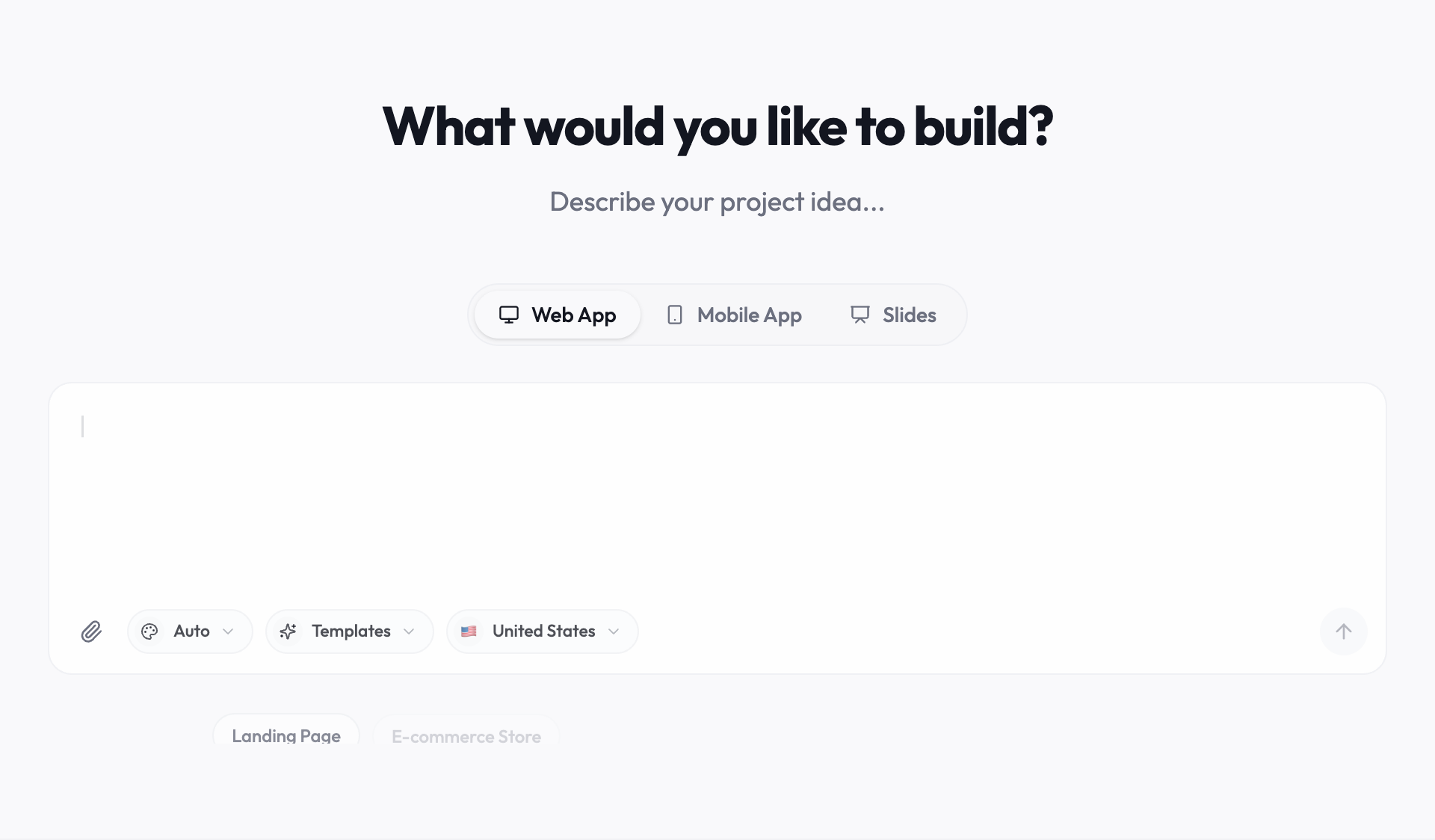
Paste this prompt and replace the bracketed parts:
Build a one-page website called "AI in [Ms. Rivera's 9th Grade English]". Sections in this order: a two-sentence summary of the policy; a three-level guide (green, amber, red) with two example assignments in each level; a "How to tell me you used AI" box with one sample disclosure sentence; a "What happens if something goes wrong" section with three steps; a list of approved tools; and a parent FAQ with four questions. Add a "Last updated" date at the top and a print button. Calm design, large readable type, works well on phones.
Then:
- Paste your own rules over the sample text. The agent drafts placeholder wording. Replace all of it with your real policy. The words are yours to decide.
- Change one thing at a time in the chat. Ask for a shorter summary, a Spanish version of the parent FAQ, or bigger level labels, and check the preview after each change.
- Decide whether you need a form. A "I have read this" acknowledgment needs somewhere to store names. Youmake integrates with Supabase for that. If your school limits where student data can go, skip the form and collect acknowledgments on paper.
- Run the security scan, which Youmake offers before publishing. It matters most if you added a form.
- Publish to your own domain, such as ai.yourclassname.com, and put the link in your syllabus.
The Youmake AI website builder page shows what small sites like this look like. If your department later wants the site inside its own systems, you can export the code or sync it to GitHub, as described under code ownership. If this is your first build, read how to build an app without coding.
Honest limits
- Youmake builds and publishes the page. It does not write a legally reviewed policy, and it does not know your district's rules. Have an administrator read your page before you send it to parents.
- A classroom page cannot override school, district or state policy. If they conflict, theirs wins.
- Google has not given a date for the default-off change, and the Search detail comes from press reports of Phillips's comments. Check your admin console and Google's follow-up notices before telling students what will be available.
- The 18% and 85% figures come from different surveys, so read them as a direction and not as one measurement.
- Youmake is a paid product. The trial is $1 for three days with a card, then Starter is $20 a month. Each change uses credits, so write the policy text first and build second.
FAQ
What is a classroom AI policy? A short written statement of when students may use AI tools in your class, how they disclose it, and what happens when the rules are broken. It sits under your school or district policy.
Do I need one if my district already has an AI policy? Usually yes. District policies set principles and name approved tools. They rarely say whether AI is allowed on a specific essay. Your page covers that and should link to the district document.
Will Google's change turn off AI in my classroom? For K-12 student accounts, Google says Gemini, Gemini Notebook, Gemini in Classroom and Search will be off until an administrator enables them. Google has not published a date. The announcement covers student accounts and Google's own products.
More guides for teachers and trainers are in our AI in Education hub. When your policy text is ready, start a 3-day Youmake trial for $1 and publish it at an address your students can find.
Sources
- Google, "Responsible AI for schools with Guided Learning" (Chris Phillips, November 3, 2026): https://blog.google/products-and-platforms/products/education/ai-learning-era-updates-2026/
- Google, "AI in Education Report: From potential to practice" (November 2026, PDF): https://services.google.com/fh/files/misc/ai_in_education_report_nov26.pdf
- TechCrunch, "Google will let schools disable its AI tools, but not without sacrificing Search" (November 3, 2026): https://techcrunch.com/2026/11/03/google-will-let-schools-disable-its-ai-tools-but-not-without-sacrificing-search/
- EdTech Magazine, "National AI Research Report Covers How Tools Are Used in Classrooms" (November 5, 2026): https://edtechmagazine.com/k12/article/2026/11/national-ai-research-report-covers-how-tools-are-used-classrooms
- WINSS, "Google's AI Education Report Finds a Guidance Gap" (November 11, 2026): https://www.winssolutions.org/google-ai-in-education-report-2026/
- Youmake pricing: https://www.youmake.dev/